OneDrive Sync Error “This File Is in Use”: What gallery.db-shm Is and How to Fix It
While using my PC as usual, I noticed that the OneDrive icon in the bottom-right corner of the taskbar was stuck showing the blue syncing status.
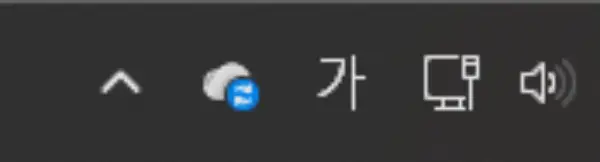
At first I assumed it was just a temporary network delay or files waiting in the upload queue. But time passed and the sync never finished. Other important documents and screenshots were getting stuck behind it too, which was pretty annoying.
1. Finding the Cause of the OneDrive Sync Error (gallery.db-shm)
To see what was going on, I clicked the OneDrive icon and checked the details.
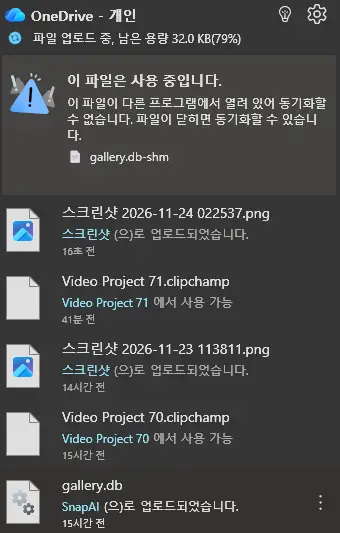
OneDrive showed the message “This file is in use. This file can’t be synced because it’s open in another program.” The file blocking the sync was an unfamiliar one called gallery.db-shm. Looking further down the list, I also saw that a gallery.db file had been uploaded to a folder named SnapAI.
2. What Is SnapAI, and Where Did It Come From?
The strange part was that I had never installed a program called SnapAI. Worried it might be malware or adware, I tracked it down through Task Manager and its install path.

The culprit turned out to be Lenovo Accessories and Display Manager (LADM), Lenovo’s management software for its monitors and accessories. With the recent update to LADM 2.0, it now includes a new built-in smart screen capture tool called SnapAI.
I had installed LADM to configure my Lenovo L27-4A monitor. After the update, the SnapAI background process started automatically and began creating its own database files (gallery.db and gallery.db-shm) in real time inside my default Pictures folder, which is synced with OneDrive. Because the program keeps those DB files open, OneDrive sees them as “files in use” and throws a sync error.
3. How I Fixed It Without Uninstalling SnapAI
Once I knew the cause, I considered uninstalling SnapAI or disabling it from startup, since I usually use the built-in Windows Snipping Tool (Win + Shift + S) for screenshots anyway.

But after looking at its features, SnapAI turned out to be fairly useful: it can extract and translate text from images, remove backgrounds with AI editing, and export straight to Office documents. So instead of deleting it, I decided to keep it and simply avoid the conflict with OneDrive.
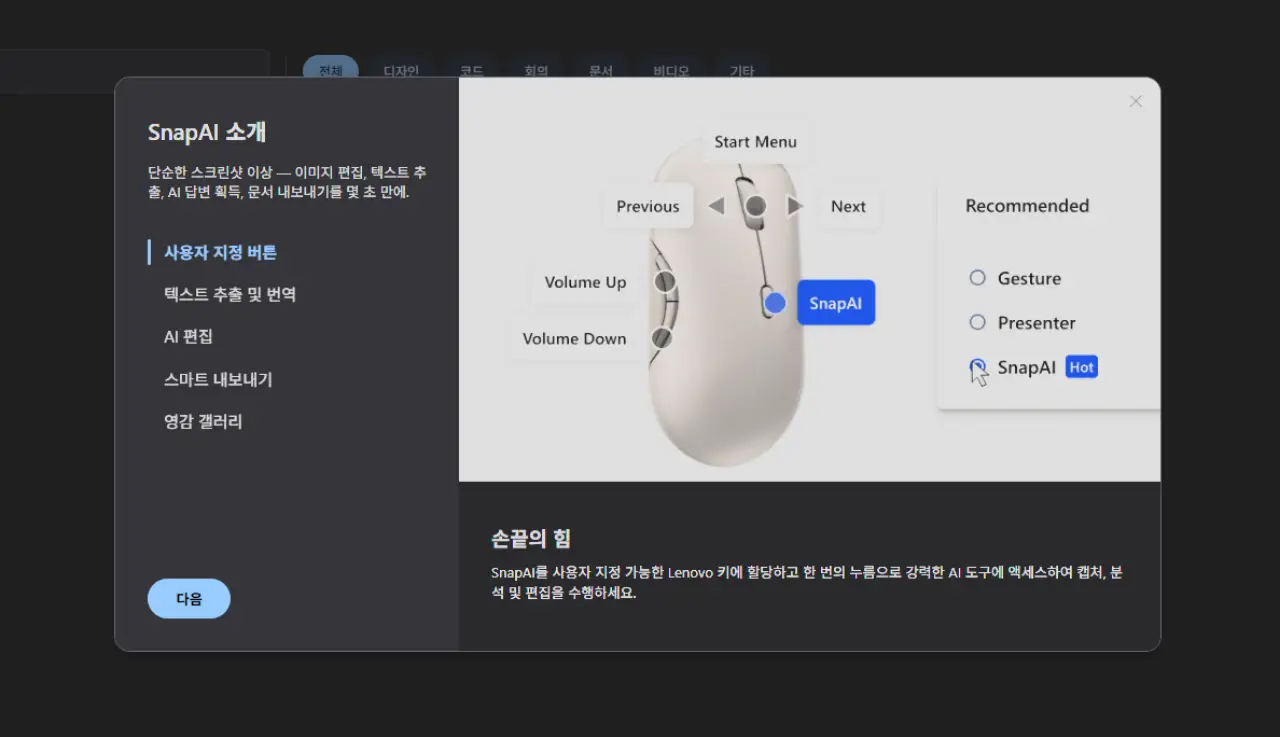
The fix was surprisingly simple:
- Open Lenovo Accessories and Display Manager and go to the SnapAI menu.
- Click the menu icon (≡) in the top-right corner and open SnapAI Settings.
- Under the general settings, click the screenshot save location.
- Change the path from the OneDrive-synced folder (e.g. D:\OneDrive\Pictures\SnapAI) to a regular local folder that OneDrive doesn’t back up (e.g. C:\SnapAI).
- Finally, delete the old SnapAI folder left inside OneDrive\Pictures.
4. Wrapping Up
As soon as I moved the save location outside OneDrive, the persistent “This file is in use” warning disappeared, and all the other queued files synced normally right away.
If you have LADM installed for a Lenovo monitor or accessory and suddenly run into a OneDrive sync error caused by gallery.db-shm, try changing the screenshot save location in the SnapAI settings.
And if you don’t use SnapAI at all, simply turning off SnapAI’s auto-start in LADM will also prevent the problem.