The One UI 8.5 update has officially started rolling out to the Galaxy S25 FE.
This was an update I’d been personally waiting for, so I’ll go through what’s included in One UI 8.5 along with my hands-on impressions after using it.
Truthfully, it’s been a few days since I actually applied the One UI 8.5 update. I saw the news that rollout would begin for the Galaxy S25 series starting May 6th, but it seems Samsung pushed it out to the Galaxy S25 FE faster than expected. I had assumed the FE line would get it a bit later since that’s usually how it goes…
For reference, as of May 10th when I’m writing this post, my Galaxy Z Flip 4 hasn’t been notified of the update yet.
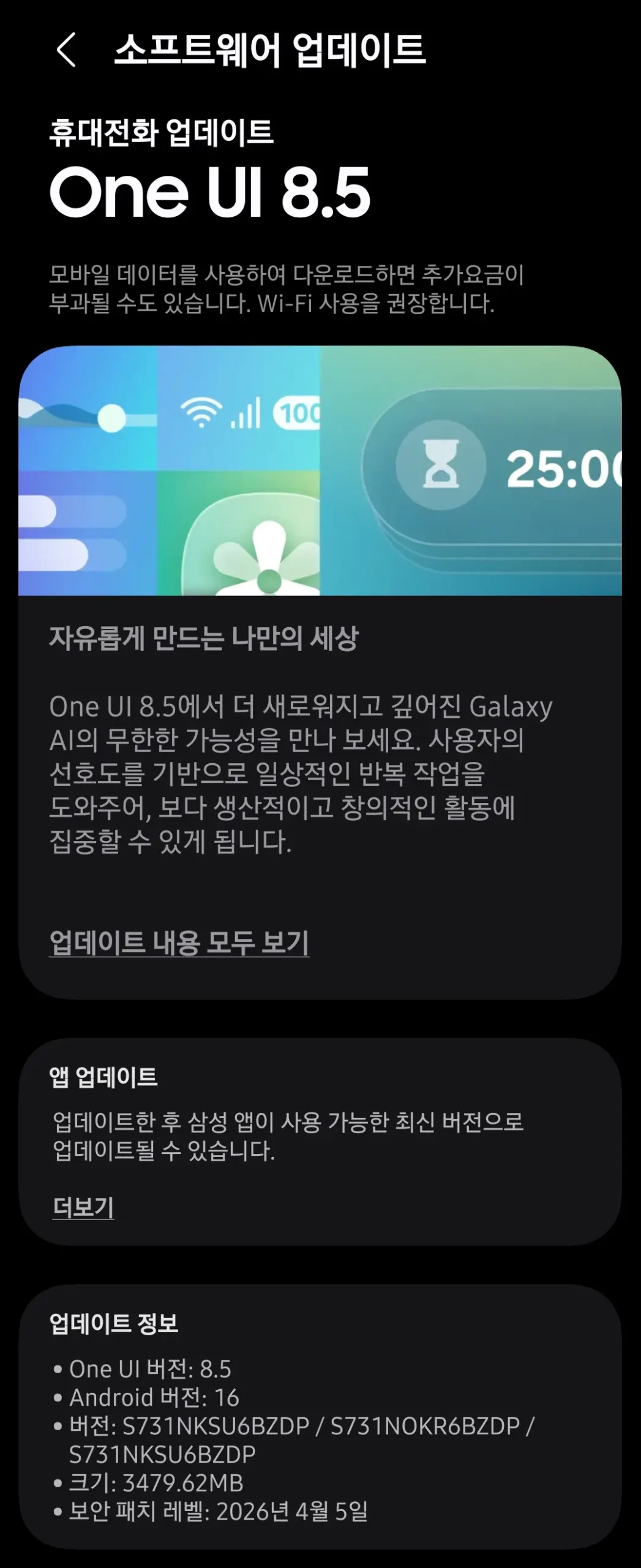
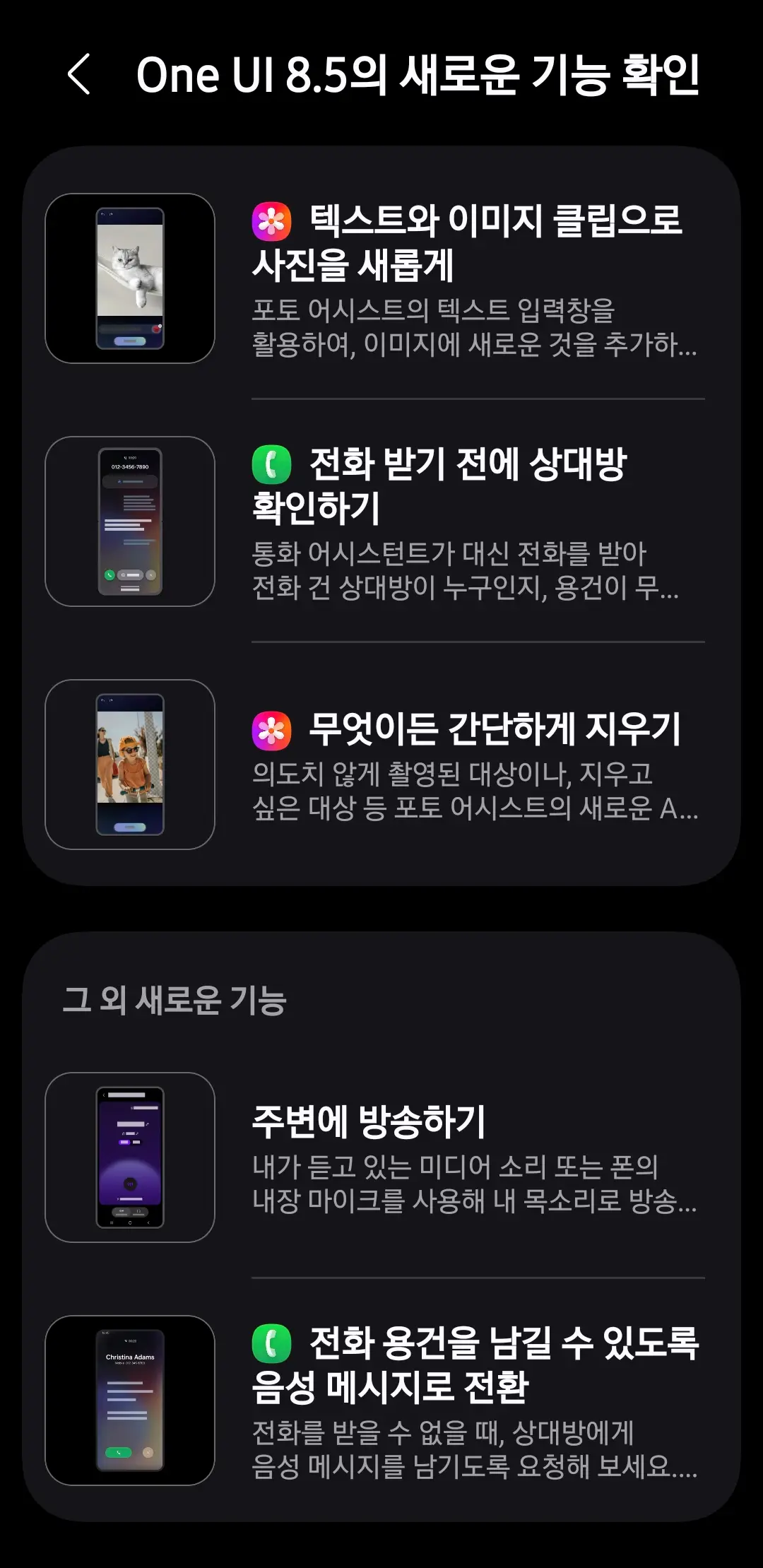
What’s Included in the Galaxy S25 FE’s One UI 8.5 Update
Here’s everything included in the Galaxy S25 FE’s One UI 8.5 update.
Keep in mind that this list may differ from what’s included for the Galaxy S25 series or the Galaxy Z Fold & Flip 7. Being the FE line, something was probably trimmed down, right?
Visual Design
A new visual that changes everyday life One UI delivers more meaningful personalization in everyday moments, allowing you to experience a more refined design. The added depth from translucent blur effects makes content easier to understand at a glance, and floating elements adapt to your usage context for greater convenience. Through friendly, intuitive data visualization, One UI is designed to help you focus on what matters.
Galaxy AI
Screen calls before you pick up When a call comes in, you can have the Call Assistant answer for you and ask the caller for their name and the reason for the call.
Edit images with text prompts Now you can simply type what you want to change to edit an image. Change the color of someone’s clothes or add something new to an empty table. Bring what you imagine to life in your photos.
Naturally combine images Using Photo Assist, you can easily merge elements from different images into one. Just select the part you want to composite from another photo, and Galaxy AI blends it in naturally. You can also add text along with the photo to create exactly the image you envision.
Style your photos in various ways With Photo Assist, you can apply various styles not just to faces of people or pets, but to any photo to change the mood. In thumbnail view, you can long-press a style to reorder it, and pin your favorite styles to the front.
Continue generating images seamlessly Now you can keep working without interruption. When creating images with AI in Photo Assist, you no longer have to save each variation separately—you can continue editing right from the result screen. Generated images are also available anytime through history.
Create your own images with Creative Studio Create your own wallpapers, special stickers, and profile images, and use them freely on your phone. You can now launch Creative Studio directly from the Apps screen.
View Now Brief on the lock screen Get more varied personalized suggestions right on your lock screen. Now Brief delivers useful information tailored to your situation.
More powerful AI Select Long-press the Edge handle to launch AI Select instantly. Even if you missed the moment you wanted, you can rewind a few seconds back to capture exactly what you need.
Automatic language detection in Interpreter Turn on the mic just once and continue conversations naturally without having to tap the mic every time. After selecting the languages to interpret, just turn on the mic and the Interpreter app automatically detects the language being spoken and translates between them.
Bixby
Smarter device control Talk to Bixby in your own words. Even without exact commands or feature names, Bixby will find the settings and features you need and change them quickly. With a personalized device guide, you can use your phone more smartly and conveniently through Bixby.
Ask anything, in any way Talk to Bixby naturally, like a conversation, and get the answers you want right away. No need to switch between apps or run multiple searches—get the information you need in a single conversation.
Easily check conversation history It’s now easier to find your past conversations with Bixby. You can quickly review previous conversations from the side panel of the Bixby app.
Camera
Auto Motion Photo Set Motion Photo to auto, and the camera will only save motion video when it detects movement from your subject. When there’s no motion, it saves as a regular photo, using storage more efficiently.
New filters added Three new filters have been added to give your photos a vivid film effect.
Home & Lock Screen
Auto-arranged lock screen When using photos of people or pets as your wallpaper, the screen is automatically arranged in the optimal layout. The wallpaper is positioned to harmonize naturally with the clock and widget placement on the lock screen.
New downloadable wallpapers You can download new wallpapers with interactive elements. Download only the wallpapers you want, so unused wallpapers don’t take up storage space.
Weather effects on wallpaper Effects are applied to your wallpaper based on the current weather. When you choose an image to use as wallpaper, you can preview how weather effects will be applied.
Clock with enhanced customization The lock screen clock can now be customized in more ways. Adjust the font weight directly to match your background image.
Weather
Improved Weather widget Quickly check precipitation info from the Weather widget on your home screen. When precipitation is forecast within the next few hours, it’s displayed as a graph on the widget.
Pollen index Pollen index information has been newly added. Check the index for tree, grass, and ragweed pollen to manage allergies effectively.
Communication
Direct voice messages When you can’t answer a call, if the caller leaves you a voice message, it’s saved on your phone so you can listen anytime. You can also see the message displayed on screen in real time as it’s being left, and respond whenever you want.
Decline calls with custom messages When a call comes in, appropriate decline messages are suggested based on your activity. You can easily tell the caller you can’t answer because you’re driving or working out—no need to type the text yourself.
Clock
Weather alarm backgrounds Start your day by checking the current weather. When your alarm goes off, the current weather is shown in the background so you can check it intuitively.
Time zone converter Comparing multiple time zones at once is now easier. In the Clock app, you can intuitively check time differences across cities using a slider interface.
Connectivity
Storage sharing From the My Files app on your phone, you can access files on other Samsung phones, tablets, and PCs. Other Samsung devices like TVs can also open files on your phone.
Auto Hotspot Sharing your phone’s internet connection has been upgraded to be easier with more people. You can now share with family members on your Samsung account, and create hotspot sharing groups to share conveniently with whoever you want.
Family device sharing Enjoy a variety of connection experiences by sharing files, screens, cameras, storage, and more with your family. You can use features like Quick Share, Camera sharing, Storage sharing, Auto Hotspot, and Multi Control on your family’s Galaxy devices.
Connect to Smart View devices faster Connect to your frequently used displays faster. Add a shortcut to your home screen to mirror your phone screen directly to a TV or other display.
Unified Auracast menu Audio broadcast settings have been unified into one place, making it easier to listen to others’ Auracast broadcasts and start your own. Find and use all broadcast-related settings in one location.
Broadcast with your own voice Share not only the media sound from your phone with people around you, but also broadcast directly with your own voice. Use your phone’s built-in microphone to broadcast with clear audio.
Quick Share
Receive only from your devices Set it up so files can only be sent from devices signed in to your Samsung account or Google account.
Suggested devices to share with Find share recipients faster. When sharing photos with family, friends, and others, Quick Share recognizes people in the photos and suggests recipients to share the files with.
Samsung Health
Weekly reports for overall wellness Check your weekly progress with a wider range of data. You can now see medication and mindfulness data in your weekly report too.
Upgraded sharing experience Add your personal touch when sharing your workout records. Use photos of you working out alongside your workout records to create the perfect image for social media.
Meditate with your Watch You can now start meditation sessions on your Galaxy Watch too. Run your favorite or recommended meditation sessions directly on either your phone or your Watch.
Measure antioxidants on your Watch anytime You can now measure your antioxidant index directly on your Watch, even when it isn’t connected to your phone. This feature is available on the Galaxy Watch8 and Galaxy Watch Ultra.
Battery & Power
Improved Battery info screen Check battery-related information more efficiently. View battery level, charging status, battery protection options, and daily usage for this week and last week—all on one screen.
Enhanced Power Saving mode Turn on Power Saving mode to extend your battery life. In standard Power Saving mode, you can set which items to restrict yourself to extend battery life, or choose Maximum Power Saving mode to turn off everything except essential features for the longest possible battery life.
Security & Privacy
Privacy notifications Set up privacy notifications to regularly check your app permission settings, and receive alerts to review app permissions when your personal data may be at risk. You’ll also get helpful tips and information to keep your personal data secure.
Theft protection To better protect your information, turn on the failed authentication lock feature in case you lose your phone or it’s stolen. If there are too many failed attempts to unlock the screen using fingerprint, PIN, pattern, or password, the screen will automatically lock. Identity verification also protects more settings than before, strengthening security.
Temporarily turn off Auto Blocker If you need to temporarily turn off Auto Blocker, you can set it to automatically turn back on after 30 minutes. To keep your device safe from security threats, set it to turn itself back on without you having to do anything.
Check the security status of your devices Check the status of all your devices and use them securely. Knox Matrix checks the security status of your devices and notifies you when updates are available. This feature is only available on supported devices signed in to your Samsung account.
Accessibility
Easy Bluetooth hearing aid control You can now access Bluetooth hearing aid settings directly through the accessibility shortcut. Change hearing aid programs, turn ambient sound amplification on or off, and quickly adjust other settings right from the pop-up.
Enhanced magnification when using mouse/keyboard When using a mouse or keyboard, the magnification area is now more stable to view. You can set the magnification area to follow cursor input or movement when changing focus with the keyboard. When using a mouse, you can also have the magnification area follow as the pointer moves to the edges of the screen.
Dwell action / Corner action The auto action after dwell feature has been split into two separate features for more appropriate use depending on the situation. Dwell action lets you set a custom action to perform when the mouse stops moving for a set time. Corner action lets you set different actions for each corner of the screen.
Other Improvements
Quick settings panel editing Editing the Quick Settings panel is now more flexible. Add items you need, remove ones you rarely use, move frequently used ones to the front—arrange each item exactly where you want it.
Custom Calendar D-day widget You can now style the D-day widget however you want. Generate background images with Creative Studio, choose images directly from Gallery, or apply your favorite colors to the background.
Get reminders earlier than when you need them Set advance notifications for reminders so you don’t miss important tasks. You can choose when to receive the advance notification for each reminder individually.
Insert tables in Samsung Notes Use tables to organize your notes cleanly. Freely adjust column width, color, and border design, and boost productivity with auto-calculation that reduces work time.
Redesigned New Tab page When opening a new tab in Samsung Internet, the tab page has been improved so you can find websites and features faster. The new tab page now shows tabs open on other devices as well as your current security status.
Partial screen recording Instead of recording the entire screen, you can adjust the recording area to include only what you want. Record only what you need.
Faster formula entry with suggestions The calculator has been enhanced for faster, easier calculations. When you open the Calculator, numbers and formulas saved to your clipboard are suggested for immediate input.
Save window size and position in DeX App window sizes and positions are saved per app. Next time you open the same app in DeX, it opens at the size and position you last used.
One UI 8.5 Update Impressions
The Galaxy S25 FE’s One UI 8.5 update weighs in at 3,479 MB—just shy of 3.5 GB. The download and installation finished quickly, and unexpectedly, since the open beta ran for so long, I haven’t run into any issues since updating.
Call Screening
A pretty massive number of features were added and improved. I wondered whether I’d actually use them all—but the one I notice most is exactly the much-talked-about Call Screening.
I’ve been using an iPhone as my main phone since the iPhone 11, so this is a feature I’ve already had on iOS—but the way it’s handled is a bit different.
The iPhone simply plays a recorded message to the caller, and the caller is prompted to text their message. Galaxy’s approach instead has the caller leave a voice message. The biggest difference, in my view, is that Galaxy records the voice, then uses Galaxy AI to summarize it and pass it on to you.
One caveat: since the audio needs to be recorded, you do need some free space on your storage.
This difference also explains something I’d been wondering about. The iPhone supports Call Screening even on older models like the iPhone 11, so why doesn’t Galaxy bring it to older models? Now I get it.
I’ll need to wait for a future update to see if my Galaxy Z Flip 4 gets this feature too.
Call Screening was enabled by default once the update finished. Now I don’t have to deal with spam calls—I don’t even have to think about them. Honestly, it’s incredibly convenient.
An Improved Bixby (?)
The second feature that stands out is Bixby.
I’d heard that Perplexity was finally integrated into Bixby in One UI 8.5, and the difference is noticeable. Asking Bixby now actually returns decent answers.
That said, it’s less Bixby’s own answer and more Perplexity’s answer… so you’ve basically got a single smartphone where saying “Hey Google” gets you Gemini, and calling Bixby gets you Perplexity. It’ll be interesting to see how Bixby evolves from here.
I still have two Galaxy smartphones that haven’t received the One UI 8.5 update yet—the Galaxy Z Flip 4 and the Galaxy A07. Once those get the update, I’ll write a follow-up post. I’m especially curious to see how much of the feature set makes it into Samsung’s cheapest phone, the Galaxy A07.
Overall, I’m very satisfied with the One UI 8.5 update. News about One UI 9 is already starting to surface, so I’ll be looking forward to that too.