Redmi Pad 2 Pro Not Recognizing USB Drive? Check Your OTG Adapter First
A USB Drive That Worked Fine Suddenly Stopped Responding?
Not long ago, a USB drive that had been working perfectly with my Redmi Pad 2 Pro suddenly stopped being recognized at all.
It wasn’t just a case of certain files refusing to open or the drive showing up as read-only. No USB drive notification appeared in the status bar, and the external storage didn’t show up anywhere in the default file manager app. It was completely dead, even though the exact same combination had been transferring data without any issues just days before.
Common Causes Reported on Forums and Communities
At first, I assumed it was a defect in the Redmi Pad 2 Pro itself or one of those persistent Xiaomi HyperOS bugs, so I started digging through Reddit and the Xiaomi Community. Plenty of users were struggling with similar symptoms, and these were the most commonly mentioned causes:
- HyperOS mount delay / freeze bug: When hot-plugging (connecting the drive while the tablet is on), the system’s mount process sometimes fails to detect the device
- OTG automatically turned off: The OTG connection may be disabled to save battery, or set to switch off automatically after a period of inactivity
- File system and partition table conflicts: NTFS not being supported, or the drive needing to be exFAT on a GPT partition rather than the default Windows MBR to be recognized properly
- USB-C pin contact behavior: Recognition errors depending on which way the connector’s data pins are oriented in the port
3 Troubleshooting Steps I Tried
Based on the fixes mentioned in those forums, I tested the easiest options one by one before resorting to resetting system settings or formatting the drive.
1. Check the OTG Setting
Some HyperOS builds may turn OTG off automatically to save battery, so the first thing I checked was whether the toggle under Settings > Additional settings > OTG was enabled.
2. Reboot the Tablet with the Drive Plugged In
This was the fix most frequently recommended by users when the mount process gets stuck. I plugged the USB drive firmly into the port and restarted the tablet, hoping it would force the system to detect the drive during boot. Still no response.
3. Flip the USB-C Connector
USB-C looks symmetrical on the outside, but some say the internal data pins can behave differently depending on orientation. I flipped the connector 180 degrees and plugged it in the other way, but it was the same story: nothing.
The Surprising Culprit: The USB-A to USB-C Adapter
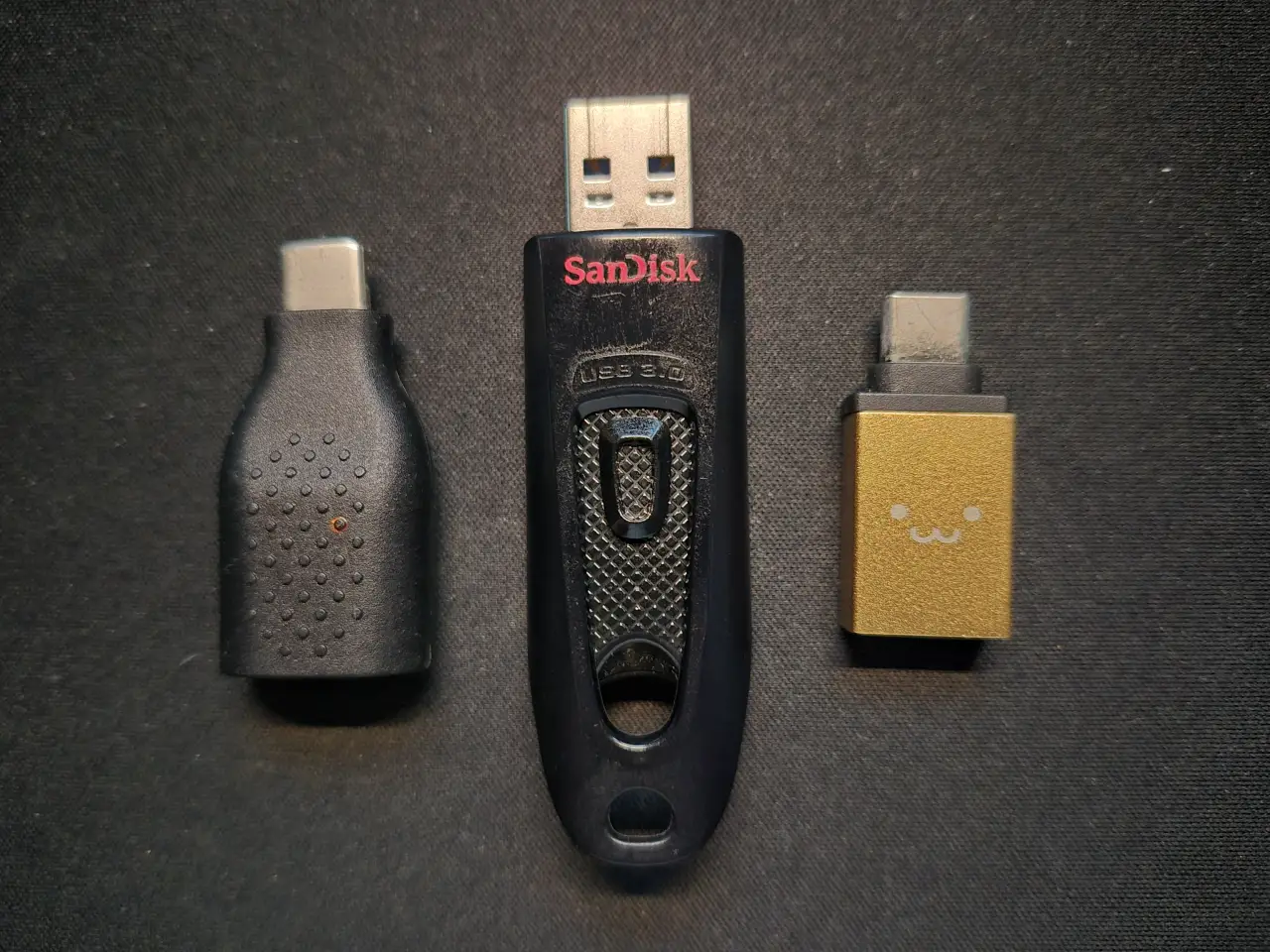
Just as I was getting frustrated and starting to suspect a broken USB-C port or a HyperOS defect, I pulled out the USB-A to USB-C adapter I’d been using and, on a whim, swapped in another one I had lying in a drawer.
Anticlimactically, the drive was recognized within a second of plugging in the new adapter.
Just to be sure, I connected the old adapter to a different smartphone, and it wasn’t recognized there either. It wasn’t a compatibility issue with a particular device at all. The data lines or OTG resistor inside the adapter had completely failed, and it had simply reached the end of its life.
There were no scratches or visible signs of damage on the outside, so it never occurred to me that the adapter could be the problem. Instead, I’d spent all that time suspecting OS bugs and formatting issues on the tablet.
Conclusion and Tip
If an external drive that normally works fine suddenly isn’t detected at all on your tablet or smartphone, try swapping the OTG adapter (USB-A to USB-C) for a different one first, before suspecting hardware failure or OS bugs and diving into complicated settings or a factory reset.
Even when an adapter looks perfectly fine, it’s surprisingly common for one to fail quietly due to broken internal wiring. Checking the most basic, overlooked components first is the fastest way to avoid wasting time.